
CaptureDisc guide
CaptureDisc as a STEM Gift for Children and Teens
Explore 3D scanning, computer vision, and scale with CaptureDisc through parent-led projects for curious children and teens, using toys, handmade models, and family sharing.
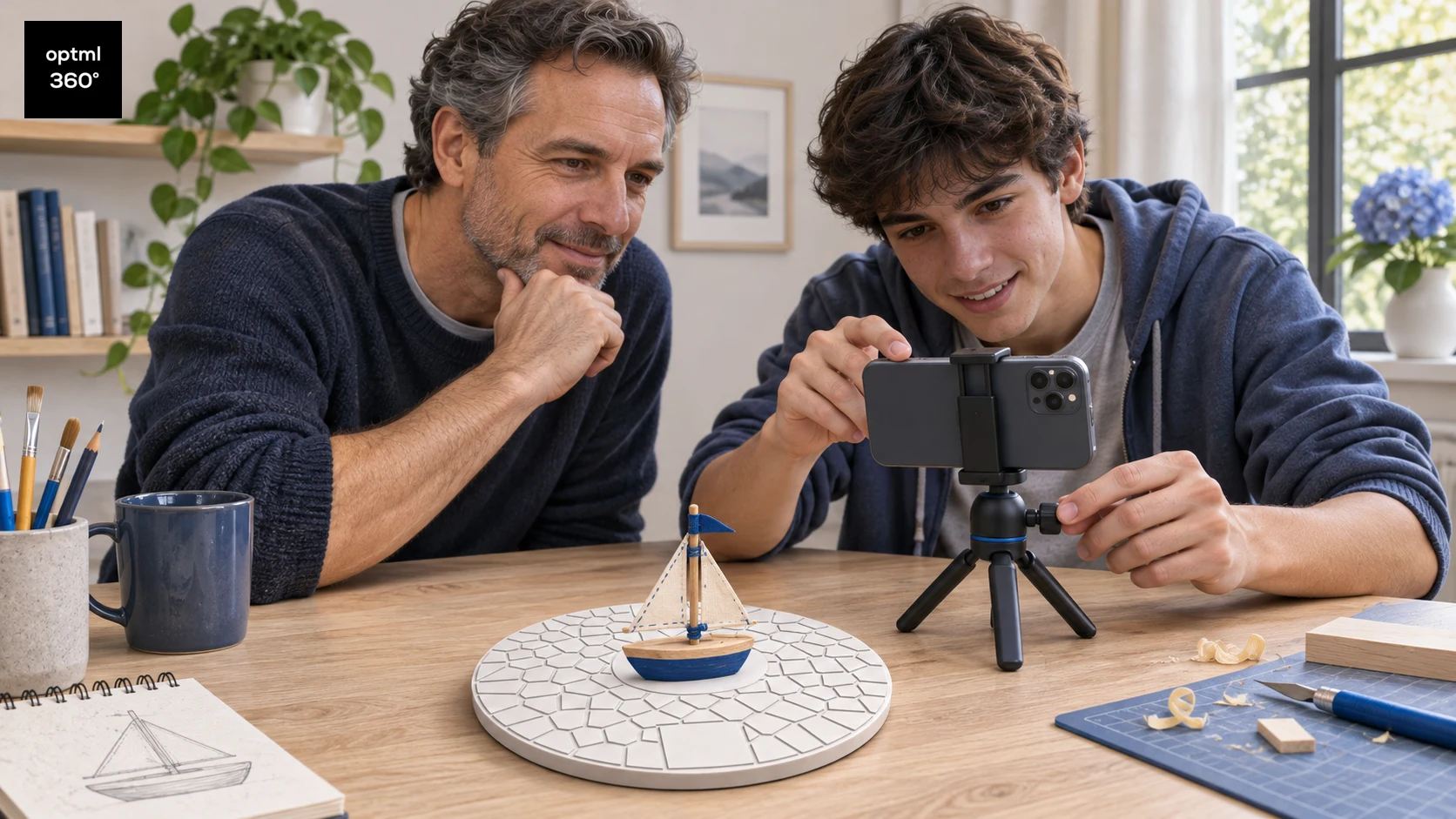
A favorite toy or a handmade model can lead to a good technology question: how does a camera turn something real into something you can explore in 3D? CaptureDisc gives families a practical way to investigate that question together.
For parents choosing a STEM gift, the appeal is a project connected to an existing interest. Children and teens can choose something they built, explore its digital capture with a parent, compare it with the original, and share it with family. Along the way, there are opportunities to talk about photography, computer vision, geometry, and measurement.
Plan a project to explore together
The Optimal 360 app requires users to be 13 or older and have a Google or Apple account. Children and teens can take part in the project with a parent or guardian's permission or supervision, with an adult handling the app where needed. Choose a safe setup and explore the capture together.
CaptureDisc itself is a passive reference, so there is no battery to recharge or electronic pairing to manage. You will still need a supported phone or camera workflow, internet access for processing, and an appropriate Optimal 360 account. Review any service-plan costs separately from the physical gift.
Start with something familiar
Choose a small, stable object with visible details: a handmade clay creature, a model, or a favorite toy. Matte surfaces are a useful place to start. Clear plastic, shiny metal, fuzzy materials, and very thin parts can make the first attempt harder.
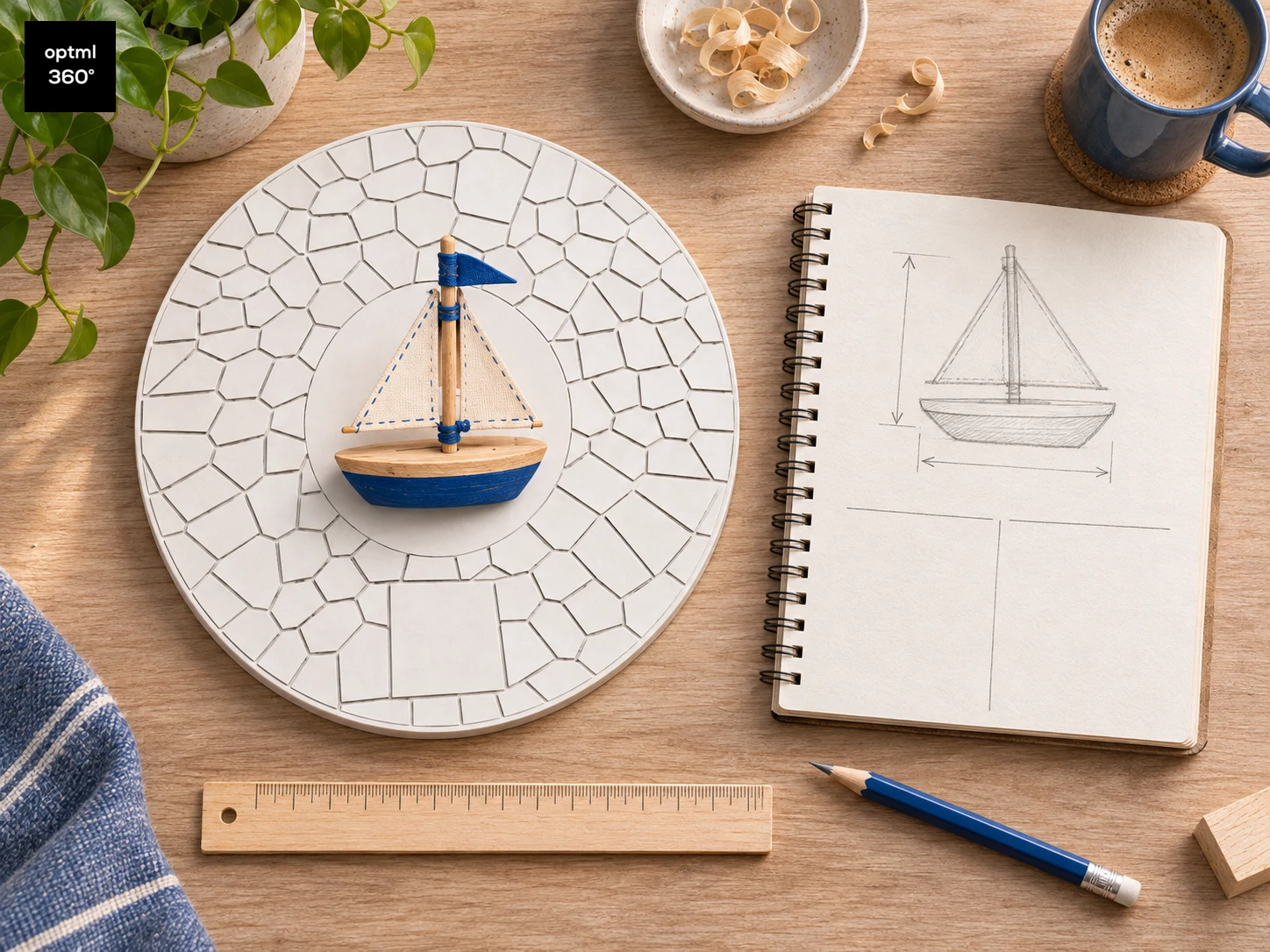
Ask your child or teen to predict the object's height or width before measuring it. Write down the estimate and a ruler measurement. Those two numbers give you something concrete to compare with the digital result later.
Explore a sailboat craft in 3D
press and move to interact
Explore how different views become a 3D capture
Place the object on CaptureDisc and keep the pattern visible around it. Record a slow video while moving the phone around the stationary setup, or rotate the disc and object together on a turntable while the camera remains steady. Use even lighting and keep the whole object sharp and in frame.
Explain that a single photograph shows one view. A recording from different angles gives the software more information about the object's appearance and shape. The pattern on CaptureDisc supplies additional visual reference points and a known size.
Upload the video to Optimal 360 and explore the processed result together. Look for details that came through clearly, then look for areas that were difficult to see. Ask what might happen if the camera moved too quickly, if the object was partly hidden, or if the lighting changed.
Guess scan measure and compare
Use the available CaptureScale measurement features to compare the digital object with the estimate and ruler measurement. Discuss any difference instead of assuming the digital number must be exact.
Try changing one part of the capture setup and repeating the activity. You could use steadier motion, improve the lighting, or add a higher camera angle. Keep the same object so there is a fairer comparison. Record what changed and whether the result was easier to inspect.
This makes measurement error and experimental design part of the activity. The point is to ask a question, make a prediction, observe the result, and explain what you would try next. CaptureScale is a learning tool here, not a substitute for a calibrated measuring instrument.
Surface area and volume readouts are planned for the app. Once available, they could add more science experiments: predict which of two shapes has more surface area or a larger volume, then compare the readouts. These are upcoming features, not measurements available in the app today.
Let family explore the finished creation
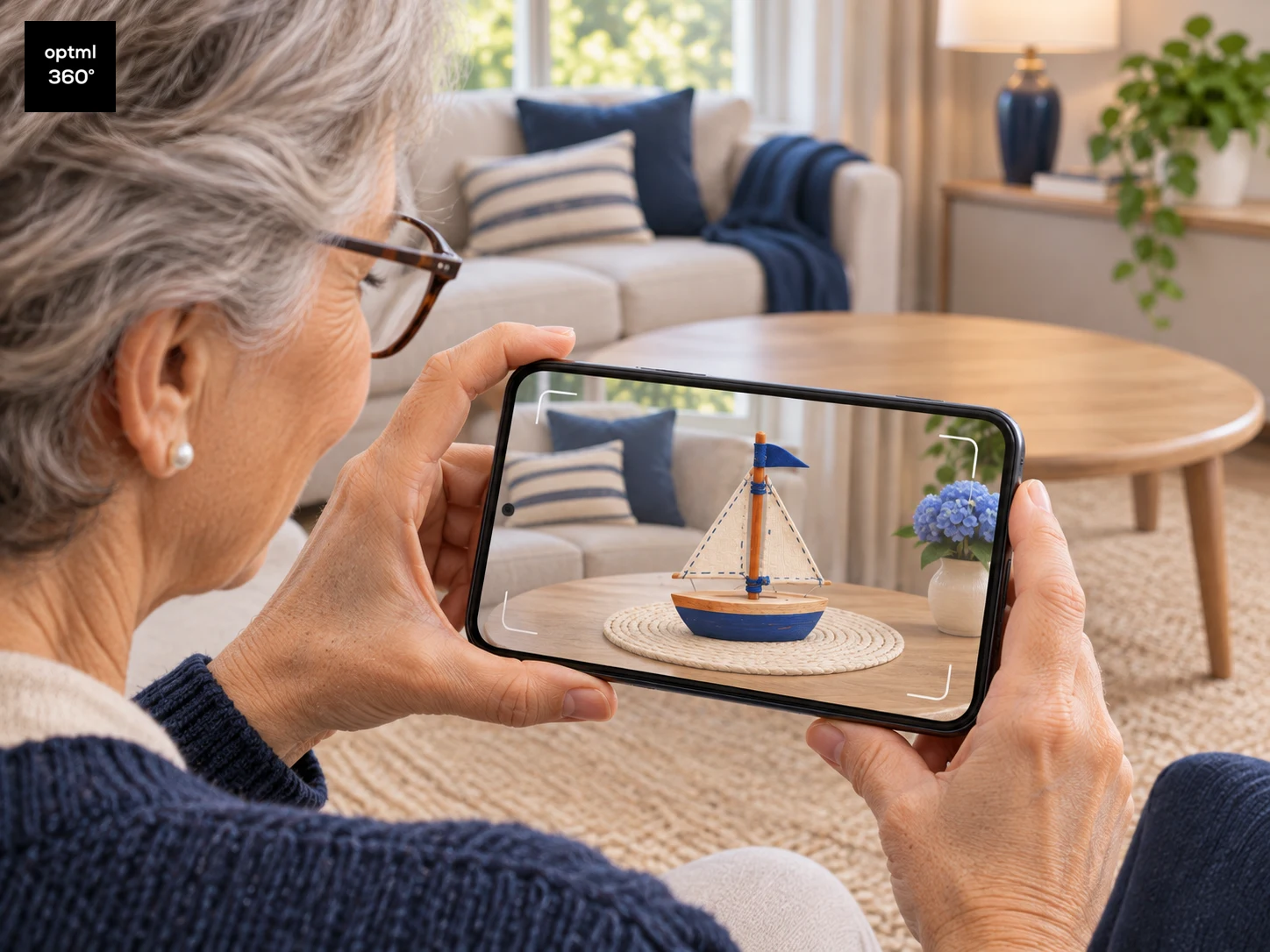
Share a capture of the finished model with a family member and ask them to look around it. A relative can see the shape of a new creation more clearly than in a single front-facing photo.
On iPhone, iPad and Android devices, CaptureScale View in Room augmented reality can place the capture into a view of the recipient's own surroundings.
Parents should review the scene and sharing settings before sending anything.
Give a first project with the gift
Include a simple challenge with CaptureDisc: choose a creation, predict its dimensions, capture it, and compare the result. A ruler and a notebook can make the activity easier to follow. A turntable is optional.
The gift gives a curious child or teen a reason to use technology to investigate something they made or care about. Start small, expect a few experiments, and keep the conversation focused on what the capture teaches you.
CaptureDisc guides for your interests
Explore ideas for your next project, or find a thoughtful gift for someone who loves creating.
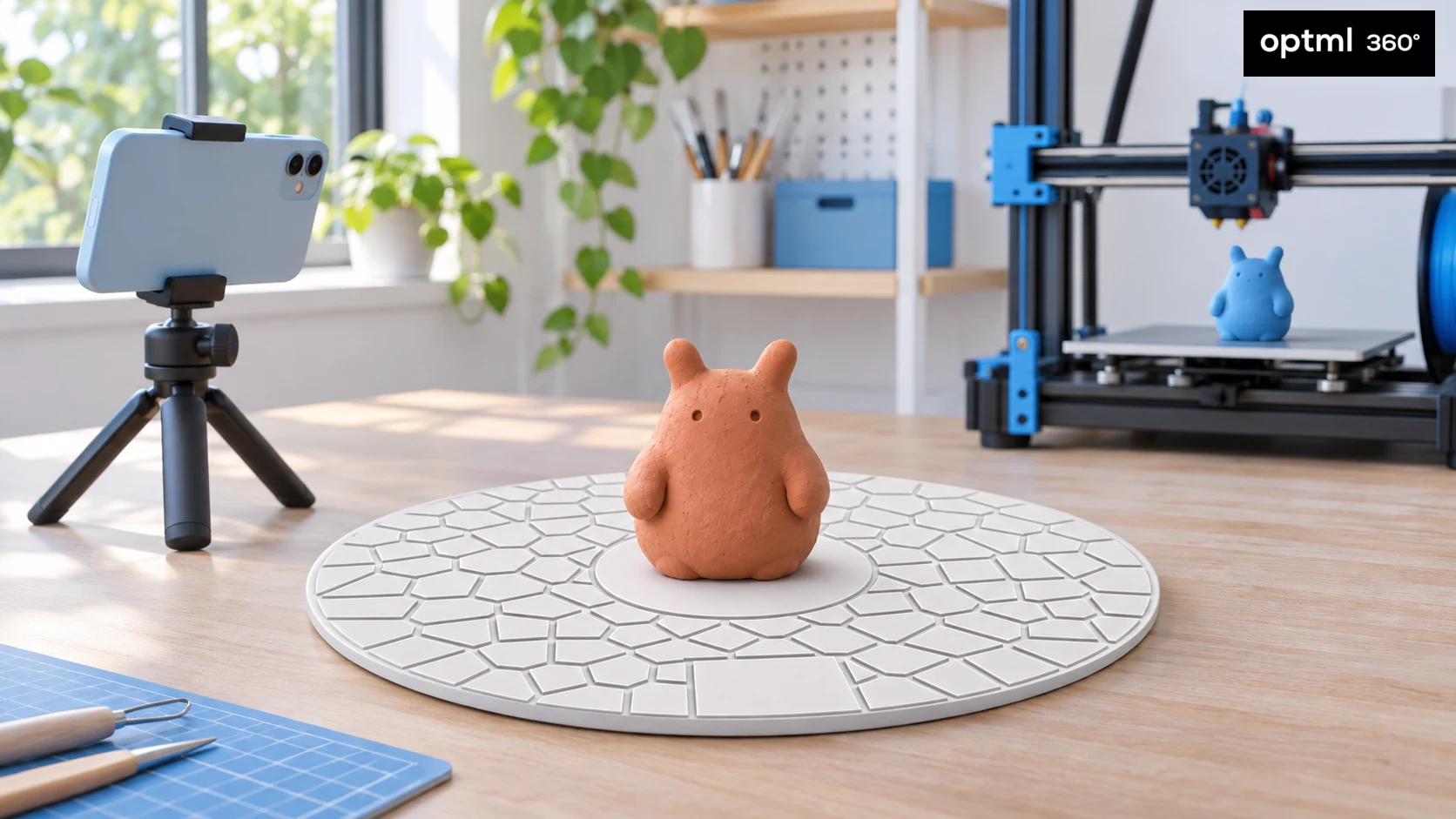
CaptureDisc for 3D Printing Enthusiasts
Bring your creations into 3D printing with CaptureMesh for printable models and CaptureScale for accurate scale and close reproduction.
Read the guide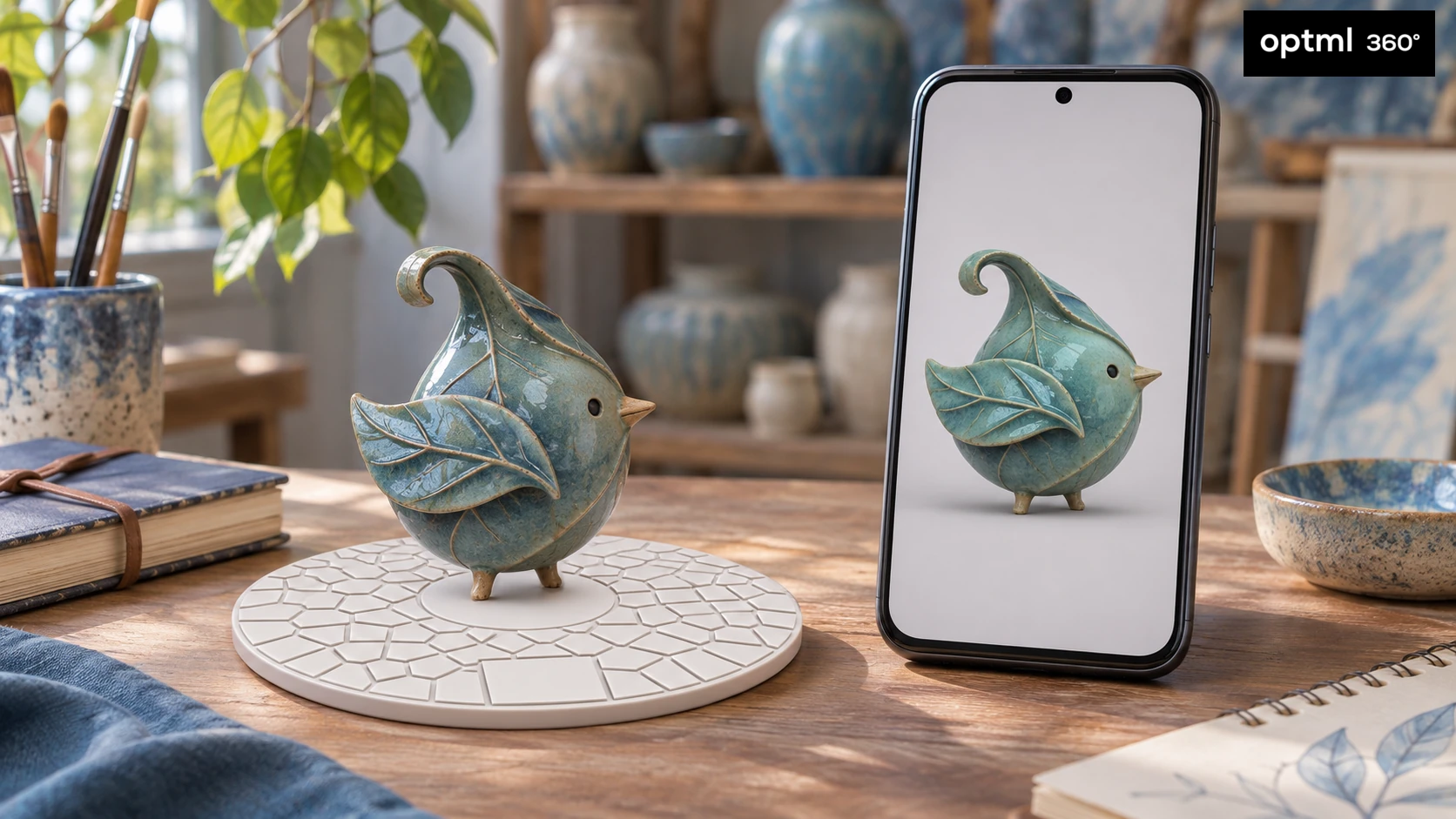
CaptureDisc for Collectors, Artists, Crafters and Sculptors
Capture collectibles, art, crafts, and sculptures in 3D. Share every angle and explore real-world scale with CaptureScale View in Room.
Read the guide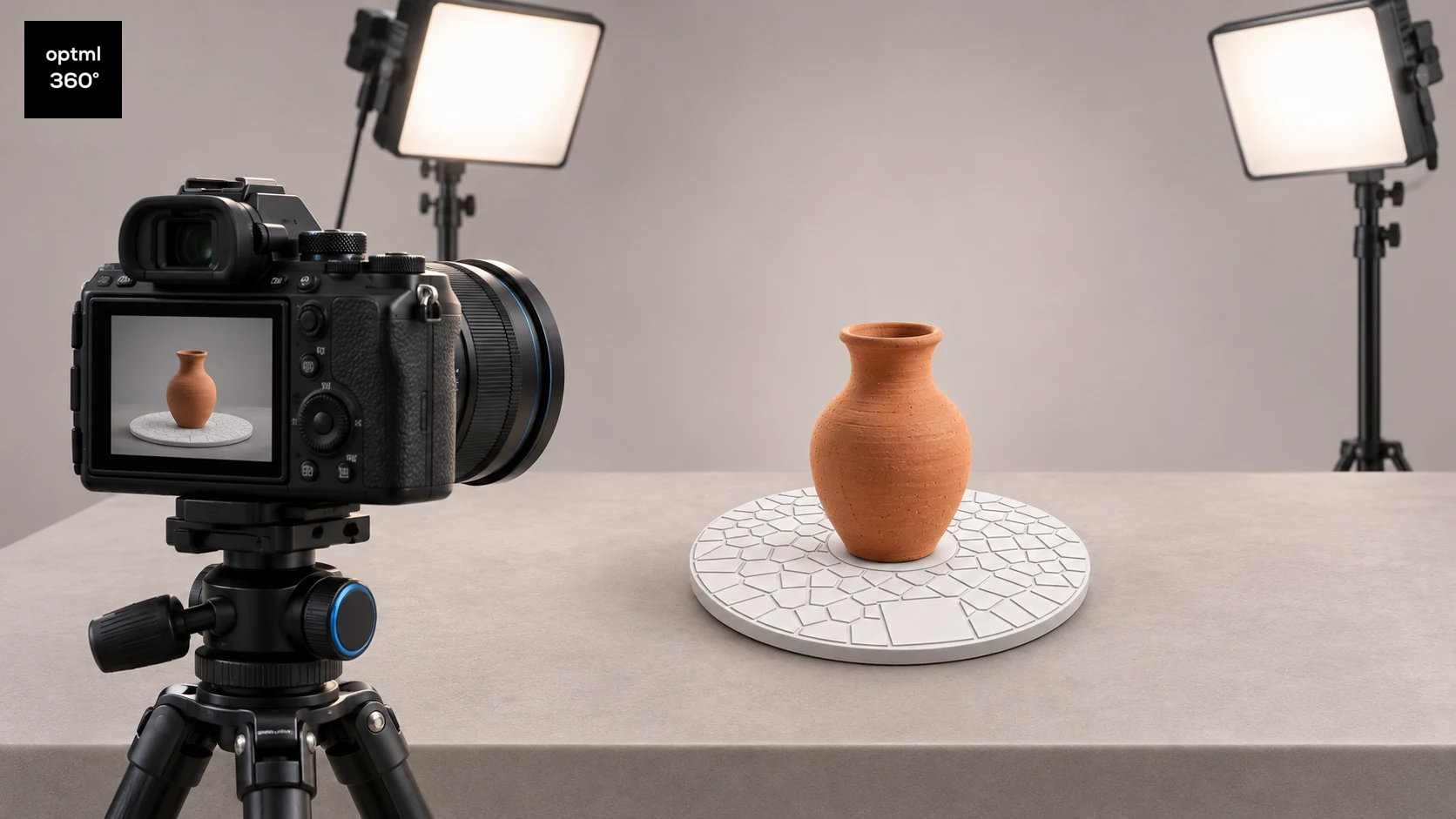
CaptureDisc for Photographers
Add interactive 3D photography to your camera workflow and improve turntable captures with CaptureDisc for product pages, portfolios, and marketing.
Read the guide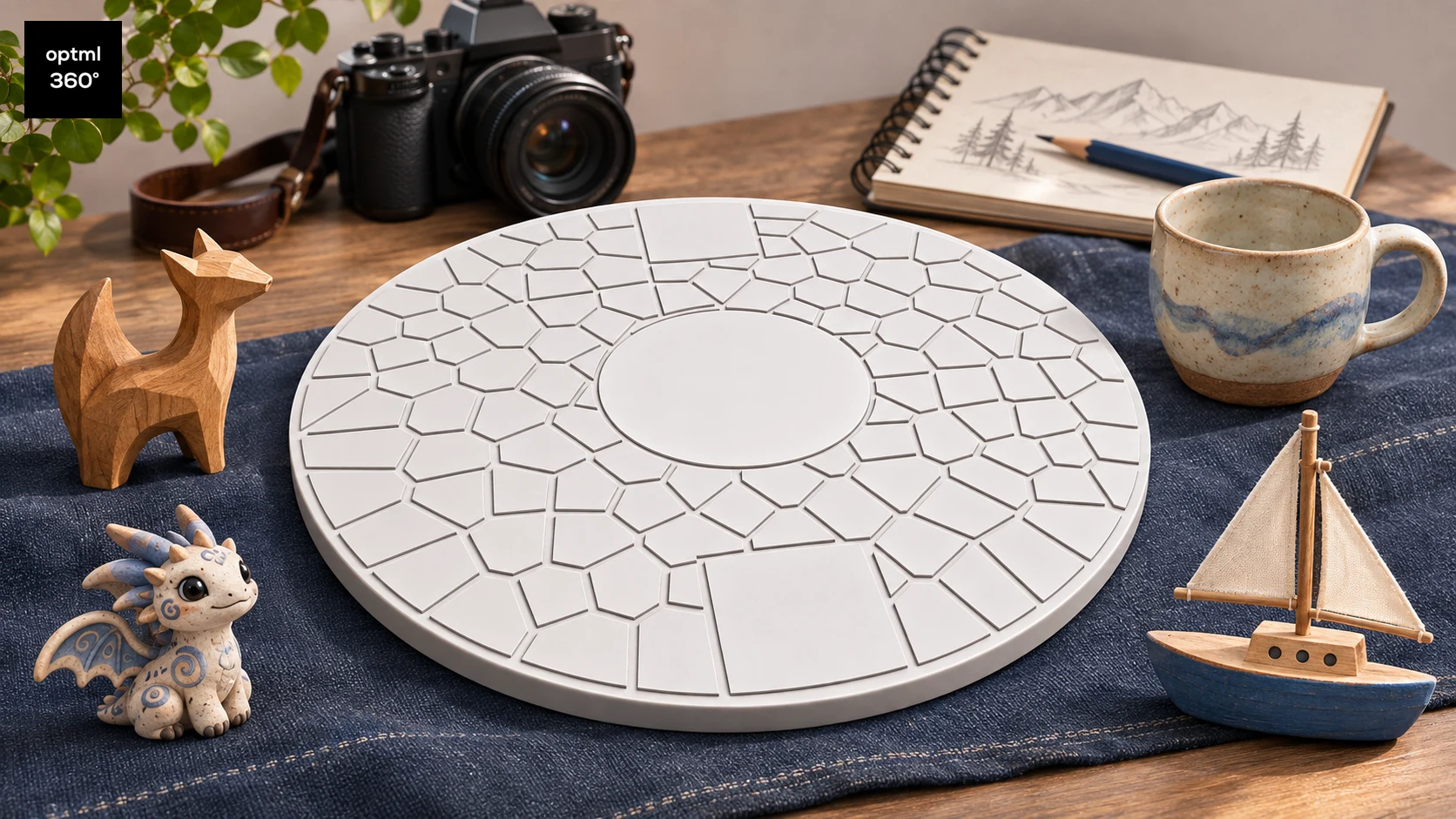
A CaptureDisc Gift Guide for Creative People
Find out who CaptureDisc suits as a gift, from 3D printing enthusiasts, collectors, artists, crafters, and sculptors to photographers and families with STEM-interested children and teens.
Read the guide
Illustrations show possible uses and workflows, not measured product results.